
WordPress Website Backup Without FTP or Hosting Control Panel Access
By: Joseph de Souza
WordPress Website Backup Without FTP - Introduction
Very often due to various reasons, FTP access or hosting control panel access is unavailable and we have to resort to other methods of taking a backup of our WordPress website .
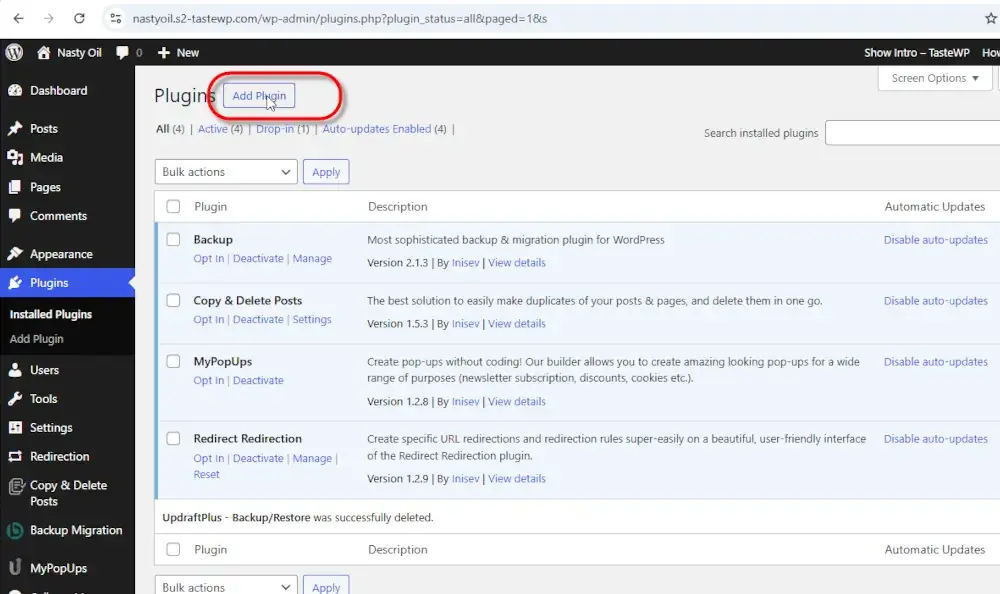
Step 1: Navigating to the Installed Plugins Screen
For this, we have to login as an administrator and go to the dashboard in panel of WordPress.
In the dashboard we have to go to plug-ins and then click on the installed plugins button. On the plug-in page, we have to click on Add plug-in.
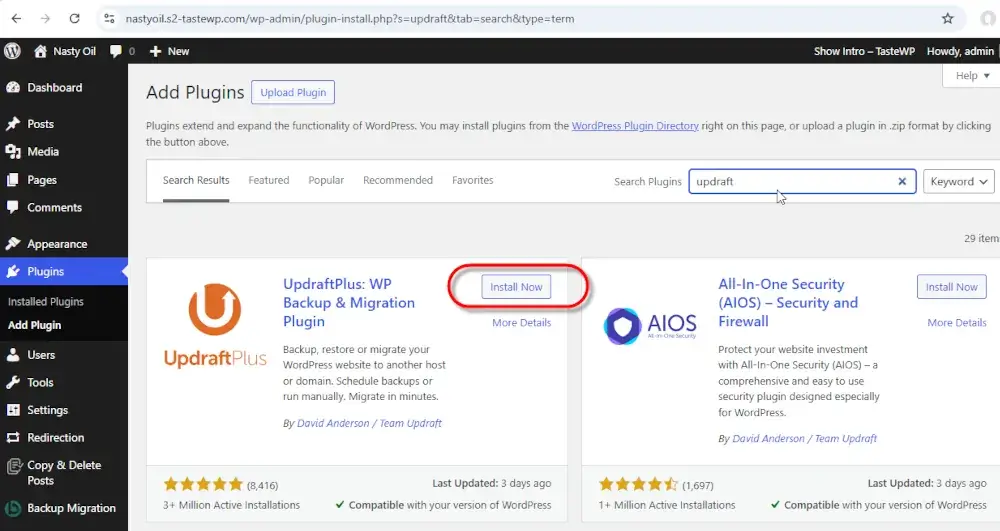
Step 2: Installing the UpdraftPlus: WP Backup and Migration Plugin
On the next screen there is a box next to Search Plugins where we can search the plug-ins available on the WordPress marketplace. In the search plug-in type Updraft or UpdraftPlus. In few moments, the UpdraftPlus: WP Backup & Migration Plugin plug-in will be available on the top left side.
Click on it, then click install now. After the plug-in has installed, activate it.
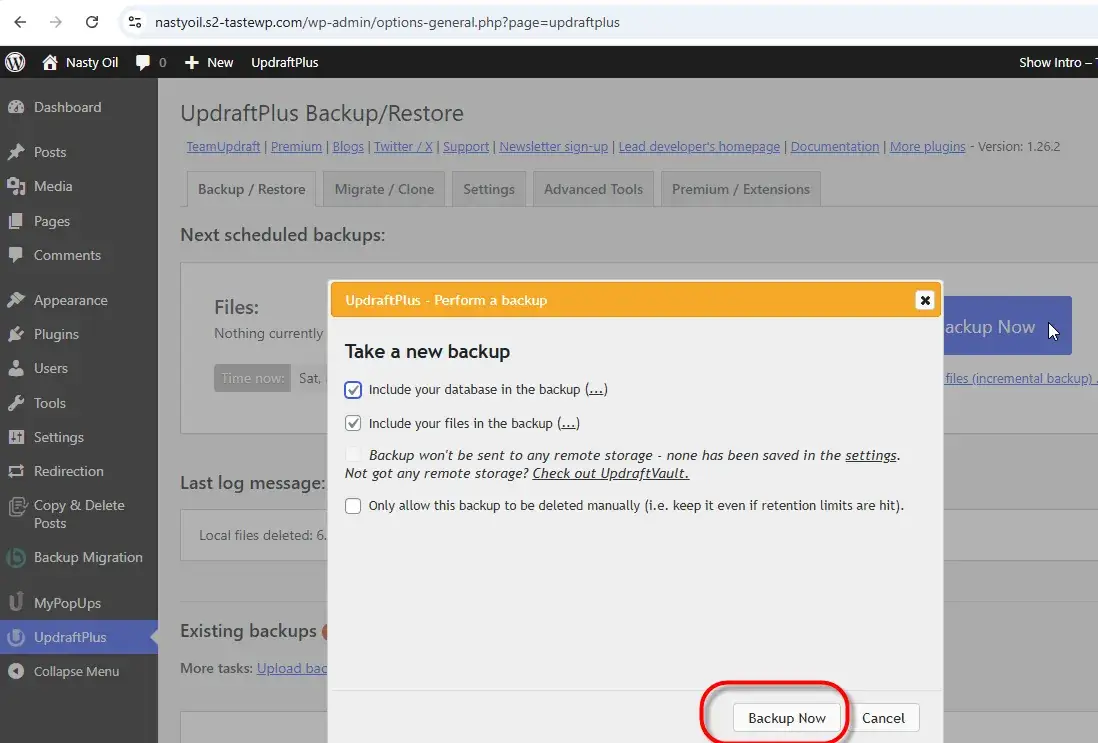
Step 3: Taking the Backups and Downloading Backups to your Computer
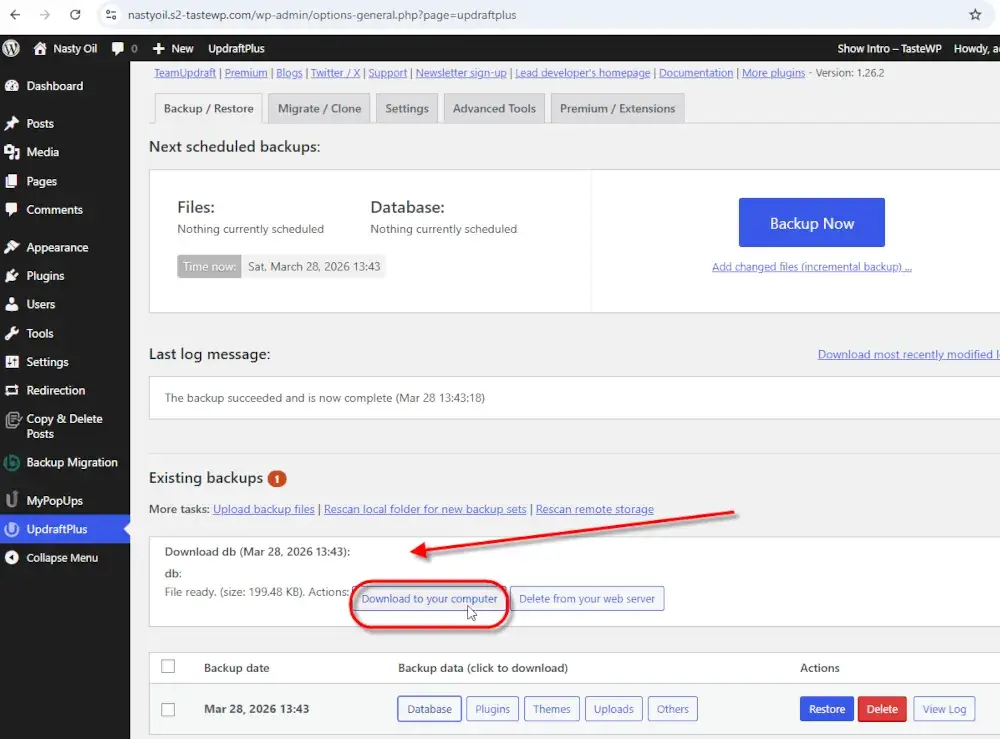
Then go to the plug-in by clicking it , the menu option is on the left side and when the UpdraftPlus screen appears click back up now. Your backup will be listed against the backup date. The backup data will be given separately as database, plugins, themes, uploads and others .
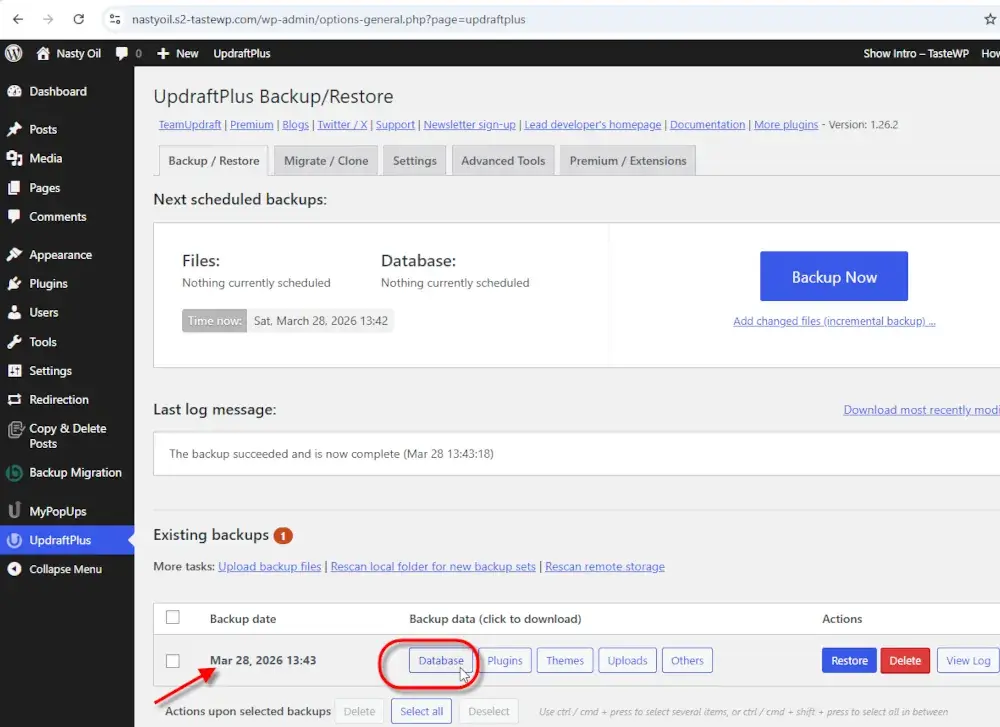
Click on the database. In a moment the download for the Database will be there on top. Below that there will be a button named download your computer. Click on that, your database will get downloaded to your computer. Repeat this for the others that is plugins, themes, uploads and others.
Step 4: Completing Backup Download
As soon as the other backups become are available for download (as explained above, click on the download button. The respective backup will get downloaded to your computer and repeat the process till your full download has been downloaded to your computer.
In the second option each tour booking page will be only system with very minimal details as I have implemented here for a client .
CHECKLIST - WordPress Website Backup Without FTP or Hosting Control Panel Access
1) Navigate to the Installed Plugins Screen
2) Search the UpdraftPlus Plugin
3) Install the UpdraftPlus: WP Backup and Migration Plugin
4) Take the Backups Using UpdraftPlus Plugin
5) Downloading Backups to your Computer
Video of WordPress Website Backup Without FTP or Hosting Control Panel Access
And Finally here is a video to illustrate the step by step procedure to take a backup of a WordPress website without access to FTP or Hosting Control Panel
About The Author
Joseph de Souza is a leading Freelance SEO consultant and Web developer in Goa, India with more than 18 years of experience in internet marketing.
He has a proven track record and has has helped several companies increase their traffic many times over and thereby increase their revenue and profits.
Besides English, Joseph has also successfully optimized two German language websites and a Danish language website and obtained outstanding results.